Getting an Instance
Steps to create a VM instance from Google Cloud Console:- Go to the Google Cloud Console Dashboard to create a VM Instance
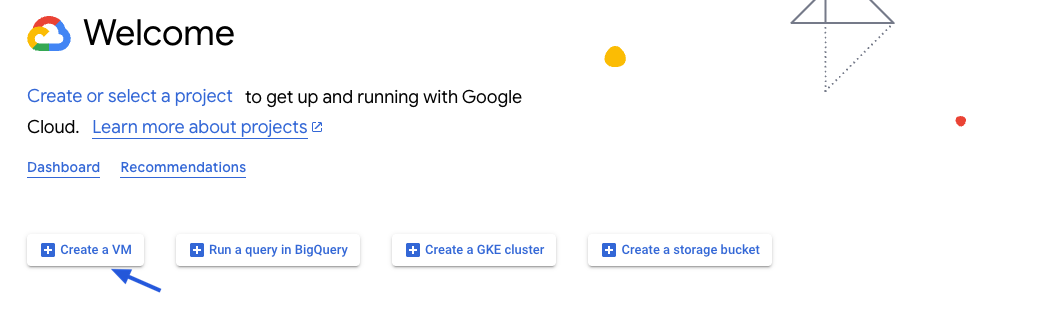
- Select an existing project or create a new one under your organization.
- We recommend at least 16GB of RAM, 4-8vCPU cores, and 500GB of disk. The exact instance type to
choose depends on your document volume and query load, but a
e2-standard-4/e2-standard-8is a good starting point. For more details on GCP instances, you can refer to the GCP documentation. For more information on sizing, refer to our resourcing guide.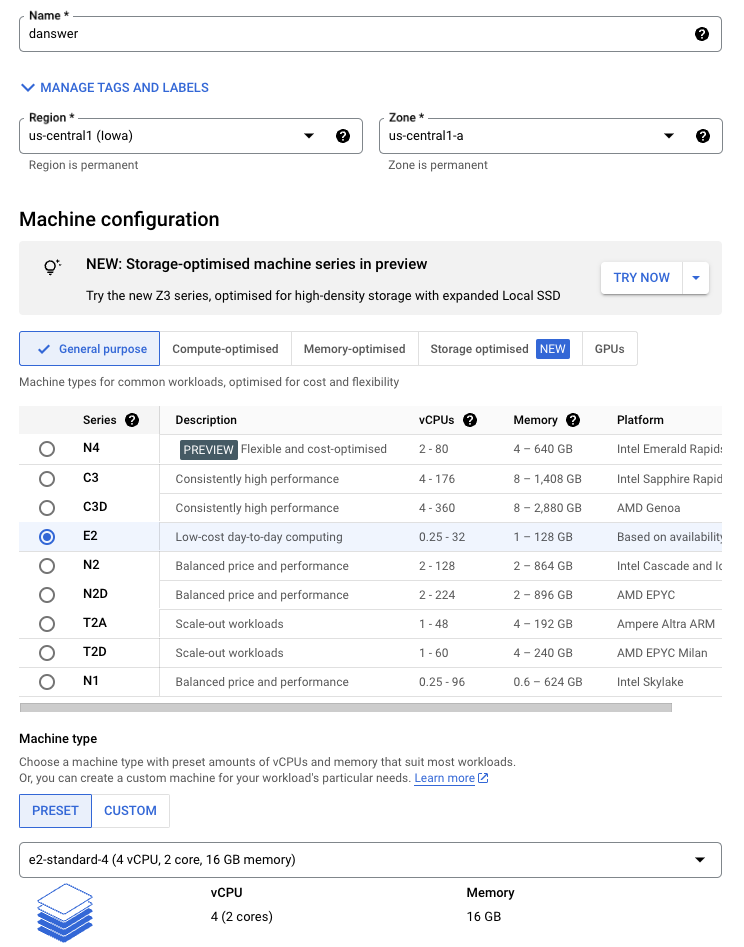
- Make sure to allow HTTPS traffic in the firewall settings and valid scopes for the instance.
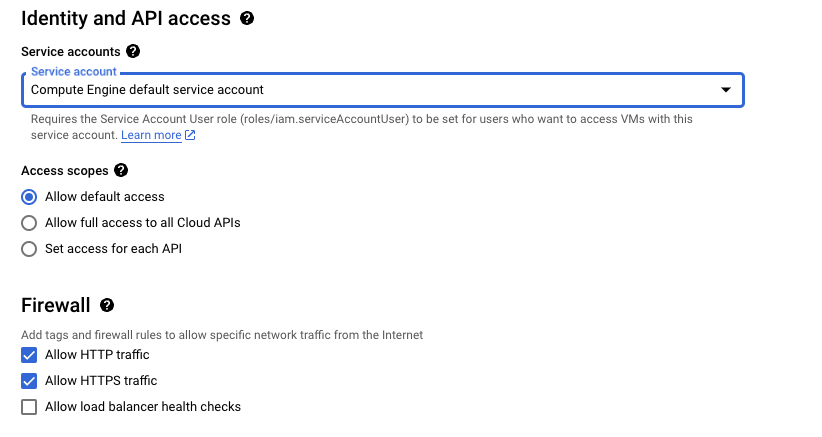
e2-standard-4 instance.
For more details, you can follow the steps in the GCP documentation to create a VM instance.
Pointing your Domain to the Instance
Next, we should point your domain to the VM instance we just created. To do this, we need to go to your DNS and add two records. For this guide, I’ll be assuming your DNS provider is GoDaddy, but it should be almost exactly the same for any DNS provider.If you don’t have a domain to use yet, then you can either buy one from a DNS
provider like GoDaddy or just skip HTTPS for now.
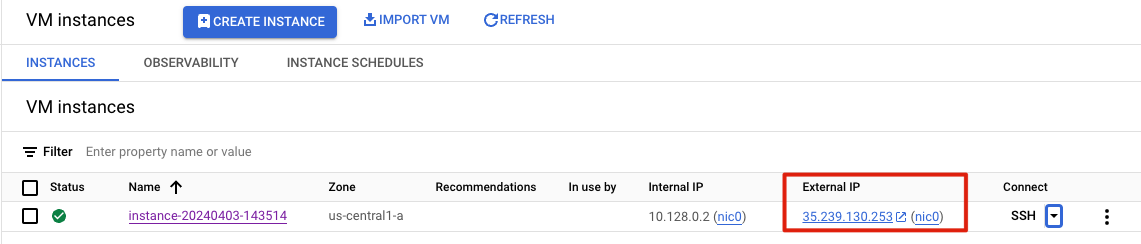 Finally, we need to head to the DNS provider and add two entries into the DNS:
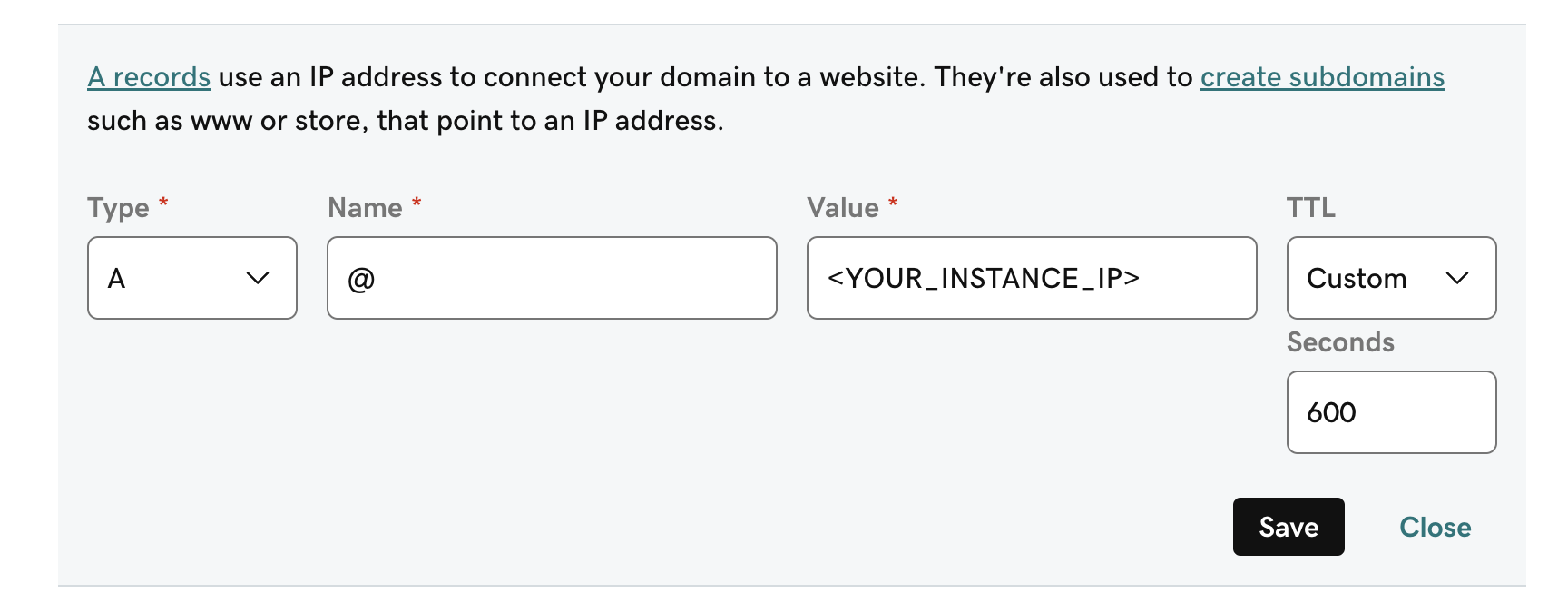
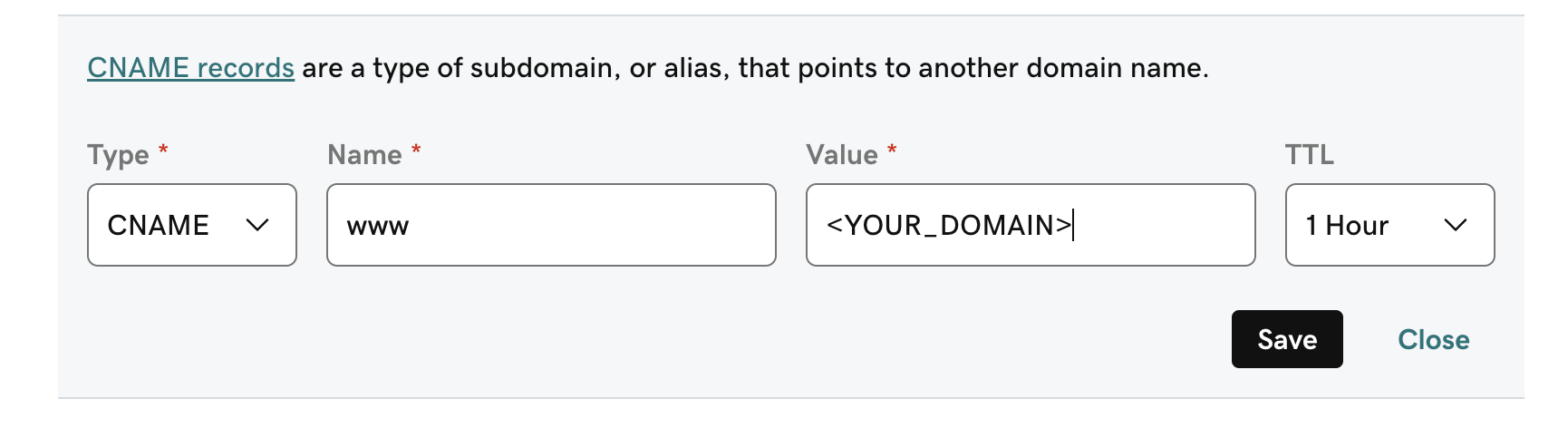 The first record directs traffic to that domain to your GCP VM instance. The second record will handle
www.<YOUR_DOMAIN> and ensure that this also takes the user to your VM instance.
Installing Dependencies
Next, we need to prepare the instance so we can actually get RECAP up and running. To do this, you’ll need three things:git, docker, and docker compose. For Debian Linux 12, this can be done with the following:
Starting up RECAP
Now that we have everything we need we can startup RECAP. First, let’s clone the repo:.env file, you can copy past the following (filling in the missing fields as needed):
.env.nginx file, put the following:
If are skipping the HTTPS setup, you should start things up with:
sudo docker compose -f docker-compose.dev.yml -p RECAP-stack up -d --pull always
instead of the above. You can then access RECAP from the IP address from
earlier or from the instance External IP provided on the instance’s page in
the GCP VM console.sudo docker logs RECAP-stack-api_server-1 -f; once you see a log for
INFO: Application startup complete. then everything should be good to go).